How to Change Themes and Customize GB WhatsApp
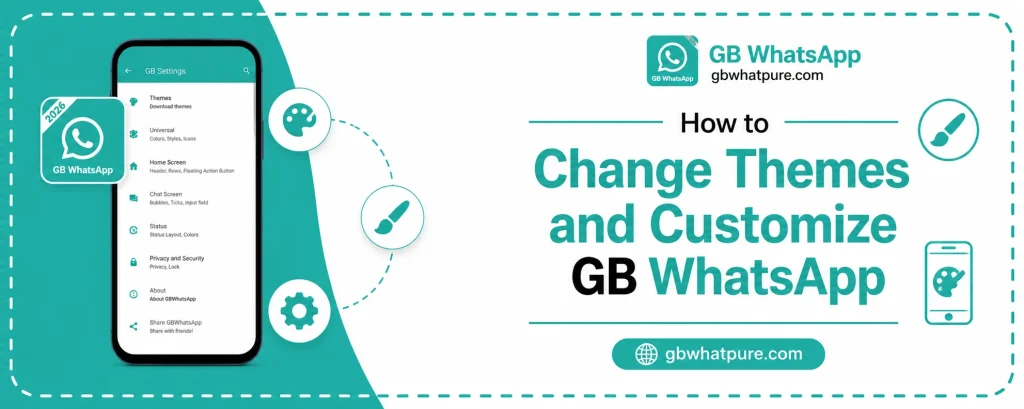
GB WhatsApp is famous for turning the otherwise plain WhatsApp interface into something that genuinely feels personal. Themes, fonts, icons, chat bubbles, and dozens of other visual elements can all be modified to match your taste. For users who want their messaging app to feel like an extension of their personality rather than a generic tool, the customization options in GB WhatsApp are unmatched. This guide from gbwhatpure.com walks you through every major customization area and shows you how to make the app truly your own.
Why Customization Matters
A messaging app is one of the few pieces of software that you interact with dozens of times every single day. The colors you see, the fonts you read, and the icons you tap all contribute to how the app feels. A generic interface that looks the same on every device quickly becomes background noise, while a personalized interface creates a sense of ownership and delight.
GB WhatsApp understands this, which is why the development team has invested so heavily in customization tools. Every section of the interface can be tweaked independently, and the mod includes thousands of free community themes that you can apply with a single tap. Whether you prefer a minimalist monochrome look, a bold colorful design, or something in between, the mod has a theme that matches your style.
How to Access the Themes Library
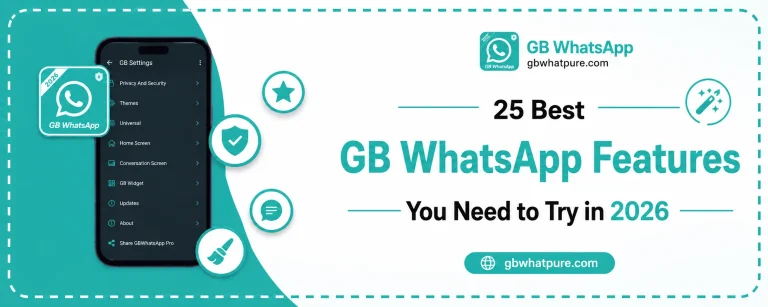
The themes library is the heart of GB WhatsApp customization. To access it, open the app and tap the three dot menu in the top right corner of the main chat screen. Navigate to GB Settings or Universal Settings, then find the Themes section. On newer builds, the section is labeled Themes and Wallpapers or simply Themes.
The library opens in a separate window where you can browse preinstalled designs, search for specific styles, and download new themes from the community repository. Each theme preview shows how the app will look after application, so you can make a confident choice before committing.
How to Apply a Built in Theme
Applying a theme takes only a few seconds. Once you find a design that catches your eye, tap the thumbnail to open the preview screen. The preview shows the home screen, chat list, and conversation view all styled in the new theme. If you like what you see, tap Apply, and the app will refresh with the new design.
The refresh takes only a moment, and your chat history, contacts, and settings remain untouched. If the new theme does not look right, you can return to the themes library and apply a different design with the same simplicity. There is no limit on how often you can switch, so feel free to experiment.
How to Download Community Themes
The preinstalled themes are just the beginning. GB WhatsApp connects to a community repository of thousands of additional designs that cover every style you can imagine. From nature inspired layouts to neon futuristic interfaces, the community themes turn the app into a true creative canvas.
To browse community themes, open the Themes library and tap on Browse Online or Download More. The app will load a list of available designs sorted by popularity, recency, and category. You can also use the search bar to find themes by name, color, or specific keywords. Each theme is tagged with a brief description and a screenshot so you know exactly what you are downloading.
Once you find a community theme you like, tap Download and then Apply. The download typically takes only a few seconds because themes are small in size. The downloaded theme also remains in your local library, so you can reapply it anytime without redownloading.
How to Import Custom Themes
If you have a theme file saved on your device, you can import it directly into GB WhatsApp. Many community members share custom themes through forums and file sharing platforms, and importing them is a simple process.
Save the theme file, which usually has a .gbtheme or .zip extension, to a folder on your device. Open the Themes library in GB WhatsApp and tap on Import or My Themes. Browse to the folder where you saved the file, select it, and confirm the import. The theme will appear in your local library alongside the built in and downloaded designs.
Always import themes from trusted sources to avoid corrupted files. The community repository inside the mod is curated, so anything you find there is safe to use.
How to Customize Fonts
Fonts are another major customization area in GB WhatsApp. The mod includes a library of more than 100 fonts, ranging from clean modern sans serifs to decorative handwritten styles. Changing the font is a quick way to refresh the entire reading experience.
To change the font, open GB Settings, navigate to Universal Settings or Appearance, and find the Font Style option. The library opens with a preview for each font, showing the same sample text in different styles. Tap on a font to apply it, and the entire app will refresh with the new typography.
You can also set a custom font by importing a TTF or OTF file from your device storage. This is useful for designers and brand conscious users who want a unique look that no other GB WhatsApp user has.
How to Customize Chat Bubbles
Chat bubbles are a subtle but powerful customization tool. Changing the bubble style alters the shape, color, and border of the message containers in every conversation. The effect is noticeable without being overwhelming, which makes it a favorite tweak for many users.
To customize chat bubbles, open GB Settings, then Chat Settings or Conversation Customization. The bubble section offers dozens of styles, including rounded designs, sharp minimalist edges, and gradient color blends. Pick a style, preview it in the built in preview window, and apply the change.
You can also set different bubble styles for incoming and outgoing messages. This lets you create a clear visual distinction between messages you send and messages you receive, which is helpful in busy group chats.
How to Change the App Icon
The app icon is the first thing you see on your home screen, and GB WhatsApp lets you replace the default icon with a custom design. This is especially useful for users who run the mod alongside the official WhatsApp, because a custom icon prevents confusion between the two apps.
To change the icon, go to GB Settings, then Universal Settings, then App Icon. The library includes a wide selection of designs, from minimal monochrome icons to colorful custom illustrations. Pick an icon, apply the change, and your home screen will refresh with the new look.
Some Android launchers also support custom icon packs, which can be combined with the GB WhatsApp icon for an even more personalized home screen.
How to Customize the Home Screen
The home screen is the main hub of GB WhatsApp, and the mod lets you tweak it in more detail than the official app. You can change the background wallpaper, modify the header color, adjust the contact list layout, and even hide or rearrange navigation tabs.
The home screen customization options are found under GB Settings, then Home Screen or Layout. Take a few minutes to explore the available toggles, and you will discover options you did not know existed. Hiding the camera tab, for example, gives the home screen a cleaner look, while adding a status tab makes it easier to share updates with friends.
How to Reset All Customizations
If you make too many changes and want to start fresh, resetting the customization is straightforward. Open GB Settings, find the Reset or Restore Defaults section, and choose Reset Theme and Customization. The app will return to the default appearance, and you can begin building a new look from scratch.
Resetting does not affect your chats, contacts, or media. Only the visual customization is cleared, which makes this a safe operation that you can perform anytime.
Frequently Asked Questions
Yes, the community themes available in the GB WhatsApp theme library are free to download and apply. Some premium themes may be available through third party designers, but the built in library is entirely free.
No, themes only modify the visual appearance of the app. Your chats, media, contacts, and settings remain completely untouched when you apply a new theme.
Yes, the mod supports custom theme creation through community tools. You can design a theme on your computer, save it in the GB WhatsApp format, and import it into the app through the Themes library.
You can export a custom theme from GB Settings, then share the exported file through chat, email, or any file sharing platform. Friends who import the file into their GB WhatsApp will see the same custom design.
Yes, the developer team ensures that updates preserve your custom theme and settings. As long as you install the new APK over the existing version, your personalization remains intact.
Final Thoughts
Customizing GBWhatsApp Pro is one of the most enjoyable parts of using the mod. With thousands of themes, more than 100 fonts, dozens of bubble styles, and a complete home screen editor, the possibilities are nearly endless. Take a few minutes to explore the customization options, try a few themes from the community library, and craft a look that feels uniquely yours. For the latest themes and the most recent build of the mod, gbwhatpure.com is the best place to start.