How to Back Up and Restore Chats in GB WhatsApp Easily
Your chat history is one of the most personal collections of data on your phone. Years of conversations, shared photos, voice notes, and important documents often live inside GB WhatsApp APK, and losing that data can feel devastating. Fortunately, the mod includes a powerful and flexible backup system that makes protecting and restoring your chats a straightforward process. This complete guide from gbwhatpure.com explains how to back up and restore your data with confidence, whether you are switching phones, updating the app, or just preparing for the unexpected.
Why Backups Matter More Than You Think
Many users underestimate the importance of regular backups until the moment they actually need one. A failed update, a phone malfunction, a forgotten password, or a clean reinstall can wipe out years of conversations in seconds. Once that data is gone, there is no way to recover it from any external source, which makes the backup the only safety net you have.
Backups also make it easy to migrate between devices. If you upgrade to a new phone, a recent backup ensures your chats move with you instead of starting from scratch. The same logic applies when moving from the official WhatsApp to GB WhatsApp or back. A reliable backup strategy is the foundation of a stress free mod experience.
What GB WhatsApp Backs Up by Default
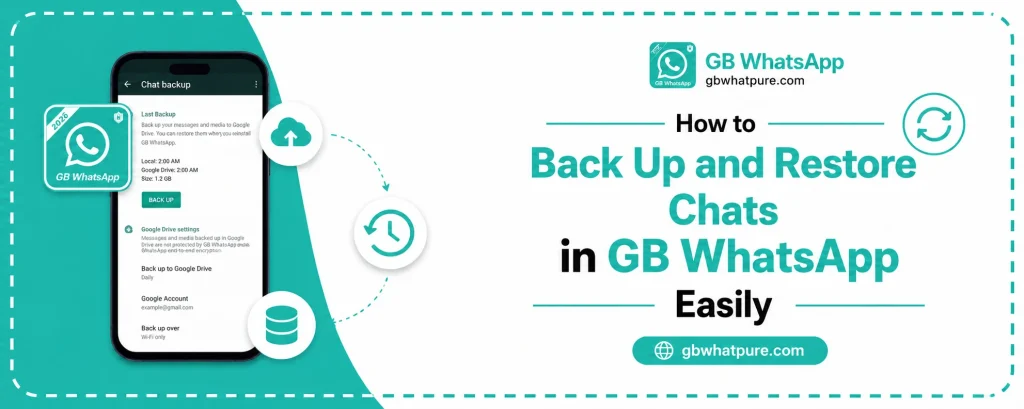
GB WhatsApp includes two parallel backup systems. The first is a local backup stored in the device storage, and the second is an optional Google Drive integration for users who want off device redundancy. Understanding how each works helps you choose the right strategy.
| Backup Type | Storage Location | Includes | Auto Schedule |
|---|---|---|---|
| Local Backup | GB WhatsApp folder in internal storage | Chats, media, settings | Daily by default |
| Google Drive Backup | Connected Google account | Chats, media, settings | Manual or scheduled |
Both backup types capture the same data, but the local copy is faster to create and restore. The Google Drive copy protects you even if your phone is lost or damaged, because the data lives in the cloud. The best practice is to keep both enabled so you have multiple recovery options.
How to Create a Local Backup
Creating a local backup is the first habit every GB WhatsApp user should develop. The process takes only a few seconds and can be triggered manually whenever you want.
Open GB WhatsApp and tap the three dot menu in the top right corner of the main chat screen. Navigate to GB Settings or Universal Settings, then find the Backup and Restore section. Tap on Backup and the app will compile your chats, media, and settings into a single file. The file is stored in the GB WhatsApp folder inside your device storage, and the timestamp in the filename tells you when the backup was created.
For best results, create a backup before any major change such as an app update, a theme switch, a clean reinstall, or a device migration. The whole process runs in the background, so you can continue chatting while the backup completes.
How to Copy Backups Off Your Device
A backup that stays on your phone is only useful if the phone itself is in working condition. To protect against loss, theft, or damage, copy your backups to a second location on a regular basis. There are several convenient ways to do this.
- Connect your phone to a computer and copy the entire GB WhatsApp folder to your desktop
- Upload the backup file to Google Drive, Dropbox, or OneDrive through the file manager
- Transfer the backup to an external SD card if your phone has one
- Email the backup file to yourself as a small attachment
- Use a file sync app to automatically copy the folder to a NAS or home server
Whichever method you choose, the goal is the same. The backup should exist in at least one place outside your phone so that any device level issue does not cost you your data.
How to Enable Google Drive Backup
For users who want a hands off approach, the Google Drive integration offers automatic cloud backups. The first step is to make sure the Google account you want to use is added to your phone under Settings and Accounts. Open GB WhatsApp and head to GB Settings, then Backup and Restore. Choose Google Drive Settings and select your preferred backup frequency.
| Backup Frequency | Best For |
|---|---|
| Daily | Users who chat heavily and cannot afford data loss |
| Weekly | Most users who want a balance of safety and storage |
| Monthly | Casual users with limited cloud storage |
| Manual Only | Users who prefer full control over when backups run |
Once enabled, the app will create a backup to your Google Drive at the chosen interval. The first backup may take a while because it includes all historical data. Subsequent backups are smaller and faster because they only include changes since the last upload.
How to Restore Chats from a Local Backup
Restoring from a local backup is the most common recovery scenario, especially after a clean reinstall or a phone switch. The process works in the same way regardless of why you need to restore.
Open GB WhatsApp and complete the verification of your phone number if you are on a fresh install. When the app prompts you to restore from a backup, tap Restore. The app will scan the GB WhatsApp folder on your device and locate any existing backup files. Choose the backup you want to restore from based on the timestamp, and confirm the action.
If the app does not automatically detect a backup, navigate to GB Settings, then Backup and Restore, and choose Restore from Local Storage. Browse to the GB WhatsApp folder, locate the backup file, and select it manually. The restoration process typically takes a few minutes depending on the size of the backup.
How to Restore Chats from Google Drive
Restoring from Google Drive is the preferred method when you are switching to a new phone or when your local backup is missing. Make sure you are signed into the same Google account on the new device that you used for the previous backup. Install GB WhatsApp from gbwhatpure.com and verify your phone number.
When prompted, choose Restore from Google Drive and select the most recent backup in the list. The app will download the data from the cloud and apply it to your account. The download time depends on the size of the backup and the speed of your internet connection. Once the restoration completes, your chats, media, and settings will appear exactly as they were on the previous device.
Moving from Official WhatsApp to GB WhatsApp
Because GB WhatsApp uses a different package name, the local backup from the official app is not automatically recognized. To bring your chat history with you, open the official WhatsApp and create a backup to local storage first. Then install GB WhatsApp, verify your number, and use the built in migration tool under Backup and Restore to import the official backup.
The migration tool handles text messages, images, voice notes, and documents, although some advanced media like animated stickers may not transfer perfectly. After the migration completes, you can safely uninstall the official app or keep it as a secondary number for dual use.
Best Practices for Long Term Data Safety
A backup is only as good as the habits that surround it. The first habit is to back up before every update, every major change, and every device migration. The second habit is to verify that your backups are actually working by occasionally testing a restore on a secondary device. The third habit is to keep at least one copy outside your phone so that device failure does not equal data loss.
Subscribing to update alerts on gbwhatpure.com also helps you know when the mod has added new backup features or improved the existing ones. The development team continues to refine the backup system, and recent builds have added faster cloud uploads, better compression, and stronger encryption for stored files.
Frequently Asked Questions
A weekly backup is the minimum recommended frequency for most users. If you use GB WhatsApp heavily for work or sensitive conversations, daily backups are a safer choice. Enable automatic Google Drive backups so you never have to remember manually.
Local backups live in the GB WhatsApp folder inside your device storage. The path typically follows the structure internal storage, GB WhatsApp, Databases. You can copy this folder to any external location for extra safety.
No, backups are tied to the phone number used at the time of creation. You can only restore a backup to the same number that generated it. This is a security measure to prevent unauthorized access to chat history.
Corrupted backups usually fail during the restore process with a clear error message. If you have multiple backups stored in different locations, try restoring from an older copy. Going forward, create backups in more than one location to reduce the impact of any single corrupted file.
GB WhatsApp encrypts local backups with the standard WhatsApp encryption protocol. Google Drive backups are also encrypted both in transit and at rest by Google. For sensitive conversations, you can use the in app chat lock as an additional layer of protection.
Final Thoughts
Backing up and restoring your GB WhatsApp chats does not have to feel technical or stressful. With a few simple habits and a clear understanding of the available tools, you can protect years of conversations with very little effort. Create backups regularly, store them in more than one place, and download the latest build from gbwhatpure.com so you always have access to the most reliable backup features. The peace of mind that comes from knowing your data is safe is well worth the few minutes per month it takes to maintain.
![How to Switch from GBWhatsApp Pro to WhatsApp [Tutorial]](https://gbwhatpure.com/wp-content/uploads/2026/07/How-to-Switch-from-GBWhatsApp-Pro-to-WhatsApp-Tutorial-768x307.webp)