How to Update GB WhatsApp Without Losing Chats in 2026
Keeping GB WhatsApp updated is one of the most important habits for any mod user. New builds bring better performance, fresh features, important security patches, and compatibility improvements that keep the app working smoothly on the latest Android versions. The challenge, however, is updating without losing your precious chat history, media files, or custom settings. This in depth guide from gbwhatpure.com shows you exactly how to upgrade GB WhatsApp in 2026 while keeping every conversation and every file completely safe.
Why Updating GB WhatsApp Matters More Than Ever
In 2026, the official WhatsApp team has tightened its security protocols and rolled out platform changes that older mod builds simply cannot keep up with. When GB WhatsApp falls behind, users experience issues like broken notifications, missing media, or temporary bans. Updating regularly ensures you stay ahead of these problems and continue enjoying a stable experience.
Updates also unlock new features that the development team has refined based on community feedback. From improved anti ban protection to redesigned chat bubbles and expanded theme libraries, each release brings something useful to the table. Skipping updates means missing out on the very reasons people switch to GB WhatsApp in the first place.
Understanding How GB WhatsApp Updates Work
Unlike apps on the Google Play Store, GB WhatsApp does not update automatically. New versions arrive as standalone APK files that you install over the existing app. This installation process is designed to preserve your data, but only if you handle it correctly. The package name remains the same across versions, which means the new APK recognizes the previous installation and carries forward your settings, chat history, and media folders.
The two main types of updates are minor patches and major releases. Minor patches focus on bug fixes and small improvements, while major releases introduce significant new features. Both follow the same installation process, so the steps below apply in every case.
What to Do Before You Update
Preparation is the difference between a smooth update and a frustrating reset. Spending just five minutes on the steps below protects your chats, your media, and your custom configuration from any potential data loss.
| Pre-Update Step | Reason It Matters |
|---|---|
| Create a fresh local backup | Guarantees a restore point in case anything goes wrong |
| Copy the backup to cloud or PC | Adds a second layer of protection off the device |
| Note your custom settings | Helps you reapply tweaks if the update resets them |
| Ensure stable internet | Prevents the APK file from corrupting during download |
| Keep at least 30 percent battery | Avoids interruption mid installation |
These steps take only a few minutes but provide a safety net that experienced users swear by. Think of it as a small insurance policy for years of chat history.
Step by Step Update Process
The actual update flow is straightforward once your preparation is complete. Follow the sequence below to upgrade to the latest 2026 build without losing any data.
Step 1: Open GB WhatsApp and Create a Backup
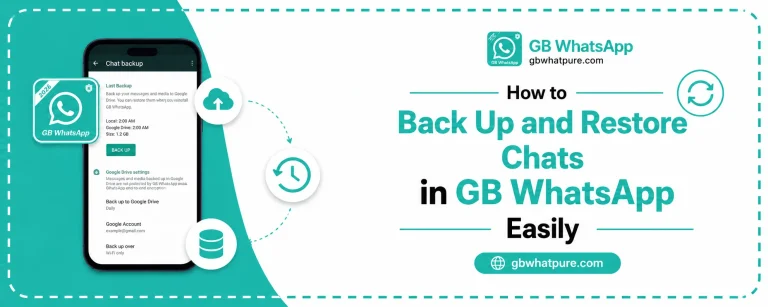
Launch the app, tap the three dot menu in the top right corner, and navigate to GB Settings or Universal Settings depending on your version. Find the Backup and Restore section and tap on Backup. The app will save a copy of your chats, media, and settings to a local folder on your device. Wait for the backup to finish completely before moving to the next step.
Step 2: Copy the Backup to a Safe Location
Open your File Manager and navigate to the GB WhatsApp folder inside your internal storage. Locate the backup file, which is usually named something like GBWhatsApp_Backup.db or similar. Copy this file to your Google Drive, an external SD card, or your computer. Having a copy outside your phone means you can recover your data even if the device itself encounters a problem.
Step 3: Download the Latest Version
Visit gbwhatpure.com on your mobile browser and find the latest GB WhatsApp 2026 release. Make sure the version number is higher than the one currently installed on your phone. You can check your current version by going to GB Settings and tapping About. Download the new APK file and wait for the transfer to complete.
Step 4: Install Over the Existing App
Open the downloaded APK file. Your device will recognize that the same package is already installed and will offer to update rather than install fresh. Tap Update or Install, whichever your device displays. The new version will replace the old one while keeping your data folder intact.
Step 5: Verify and Restore if Needed
Open the updated app and confirm that all your chats, media, and settings are still in place. In most cases, everything will look exactly as it did before the update. If something looks off, head back to Backup and Restore and load the local backup you created in step one. The restore process only takes a few seconds.
Handling Different Update Scenarios
Sometimes the standard update flow does not go as planned. Understanding the common scenarios helps you react calmly and fix the issue without panic.
- If the update fails midway, restart your phone and try the installation again from the APK file
- If the app shows a different number after updating, log out from both accounts and re verify your primary number
- If custom themes disappeared, head to the Themes section and re apply your saved designs from the local library
- If media files are missing, restore from the cloud backup you created in step two
- If the app crashes on launch, clear the app cache from your phone settings and reopen GB WhatsApp
These scenarios cover nearly every issue users encounter during updates. In rare cases where the app refuses to launch even after clearing the cache, a clean reinstall becomes necessary. This is exactly why step two is so important.
Clean Reinstall as a Last Resort
If you have tried the standard update and GB WhatsApp still refuses to cooperate, a clean reinstall may be the only path forward. This process involves uninstalling the current version, downloading the latest APK from gbwhatpure.com, and installing it fresh. Before uninstalling, make sure your backup is stored outside the device so you can restore your chats after the new installation.
Once the new app is installed and your number is verified, navigate to Backup and Restore and import the backup file you saved earlier. The restore will bring back every conversation, every shared image, and every voice note exactly as they were before. After restoration, take a few minutes to reapply your privacy settings and custom theme because these are stored separately from your chat history.
Automatic Update Options to Consider
While GB WhatsApp does not update itself, you can create a near automatic workflow using a few simple habits. Subscribe to update notifications on gbwhatpure.com so you are alerted the moment a new build is available. Add a recurring calendar reminder every two weeks to check for updates. Bookmark the download page so you do not waste time searching for the right link each time.
Some users also set up file watcher apps that monitor the GB WhatsApp folder and automatically copy new backups to cloud storage. While this requires a small upfront setup, it removes the risk of forgetting to back up before a major update.
Best Practices for Long Term Stability
Beyond regular updates, a few long term habits keep GB WhatsApp running smoothly month after month. Keep your phone operating system updated, because older Android versions eventually lose compatibility with newer mod builds. Avoid installing random plugins or themes from unverified sources, since these can introduce bugs that survive even an update. Periodically review the permissions granted to GB WhatsApp to make sure nothing unusual has been added without your knowledge.
Most importantly, treat your chat data like the valuable record it is. The conversation history, media files, and contact notes inside GB WhatsApp often hold memories and information that are impossible to recreate. Backing up regularly and updating carefully ensures this data stays with you for as long as you want to keep it.
Frequently Asked Questions
No, updating over the existing installation preserves all your chats, media, and settings as long as you install the new APK over the current version without uninstalling first. Creating a backup before updating is still recommended for extra safety.
You can check the version number inside GB WhatsApp under GB Settings and About, then compare it with the latest release on gbwhatpure.com. Subscribing to update notifications on the site gives you an alert the moment a new build goes live.
A manual update installs the new APK over the existing app and preserves all data. A clean reinstall uninstalls the app completely and requires a backup restore after the new version is installed. Manual updates are quicker and safer, but clean reinstalls are useful when the app is unstable.
You need internet to download the new APK file, but the actual installation process works offline. If you have the APK file saved on your device, you can install it without an active connection.
Yes, gbwhatpure.com hosts the official GB WhatsApp builds and verifies each release before publishing. Always avoid third party mirrors that may modify the APK with malicious code.
Final Thoughts
Updating GB WhatsApp in 2026 does not have to be stressful. As long as you create a backup, download the new APK from gbwhatpure.com, and install it over your current version, your chats, media, and settings will remain exactly as they were. Make updating a regular habit, keep a backup stored outside your device, and you will enjoy a smooth, feature rich messaging experience for years to come.
![How to Create Stickers for GB WhatsApp Pro [Step By Step]](https://gbwhatpure.com/wp-content/uploads/2026/07/How-to-Create-Stickers-for-GB-WhatsApp-Pro-Step-By-Step-768x307.webp)